You’ve downloaded your monthly statement, but opening it in Excel and making sense of your spending still feels like a chore. This guide shows you how to turn that file into actionable information — automatically — in under five minutes.
What you’ll learn in this guide
- How to export your transaction history from any Spanish bank in Excel or CSV format.
- How to import that file into Gasto.ai with a single click.
- How to use AI-powered automatic classification to categorise transactions in seconds.
- What to do when the AI doesn’t recognise a merchant: custom rules and continuous learning.
Why import your transactions instead of just checking your bank app?
Your bank’s app shows transactions the way the banking system records them: a date, a technical description, and an amount. That’s enough to spot a suspicious charge, but not enough to understand your spending habits, detect problem patterns, or plan the month ahead.
Gasto.ai turns that raw data into actionable insights: meaningful categories, trend charts, budget alerts, and anomaly detection.
The first step is getting your transactions into the platform. There are two ways: a direct PSD2 connection (automatic sync) or manual import of an Excel or CSV file. This guide covers the manual import method, which works with any Spanish bank and requires no prior authorisation process.
“Importing a monthly statement into Gasto.ai takes under 60 seconds. Classifying all transactions with AI takes another 10.”
Step 1: Export your transactions from your bank
Before importing into Gasto.ai, you need the transaction file. Most Spanish banks allow you to export your transaction history in Excel (.xls or .xlsx) or CSV format from their online banking or mobile app.
Kutxabank: Accounts → Transactions → filter period → “Export” button → Excel (.xls) format.
CaixaBank: My Accounts → select account → Transactions → Export → Excel.
BBVA: Account → View all transactions → Download → Excel format.
Santander: Accounts → Transactions → Download statement → .xlsx.
Sabadell: Accounts → Transactions → Export → CSV or Excel.
Bankinter: My money → Accounts → Transactions → Download → Excel.
Any other bank: look for “Export”, “Download” or “Send by email” options in the transaction menu. Gasto.ai accepts any .xls, .xlsx or .csv file.
Which period to export? For your first import, export the last 3 months to build a meaningful history. For ongoing use, export the previous month on the first day of each month. Gasto.ai automatically deduplicates, so overlapping periods are never a problem.
Step 2: Import the file into Gasto.ai
With the file downloaded, the import process is a single gesture. You don’t need to reformat the file, remove rows, or manually map columns — the system automatically recognises the format of all major Spanish banks.
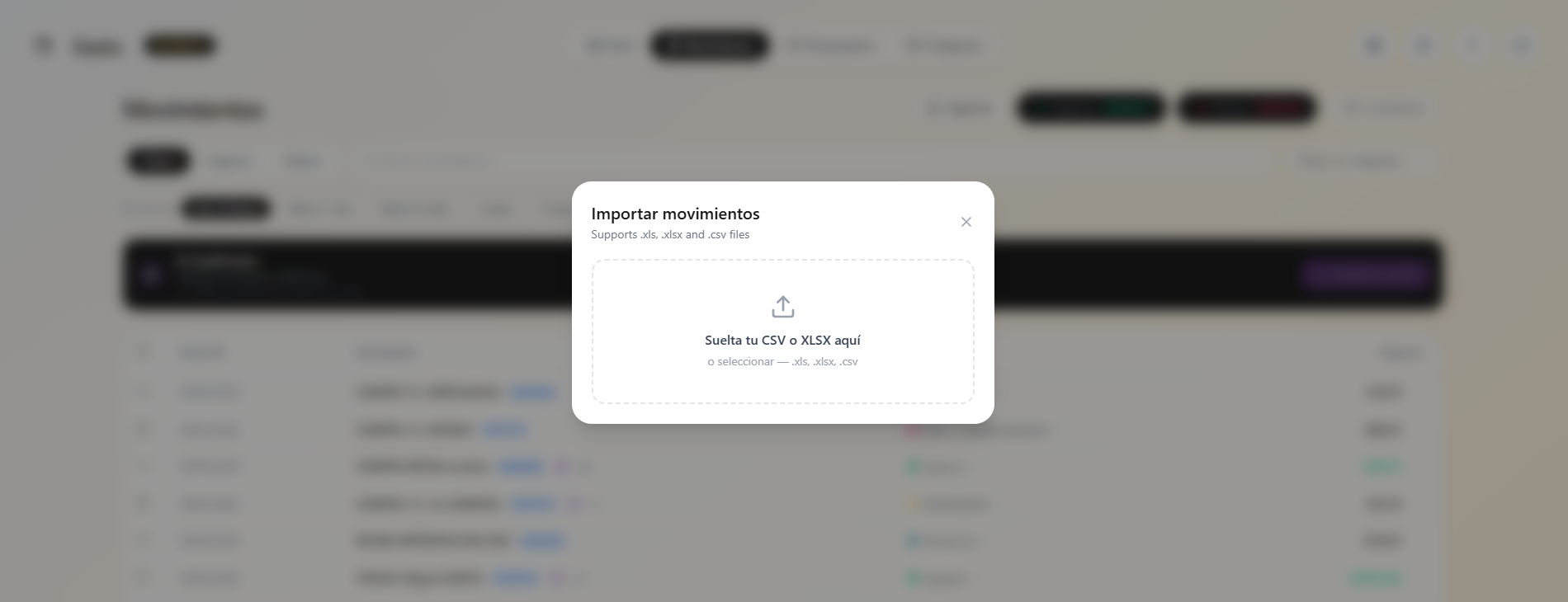
Go to Transactions in the top navigation bar and click the Import button in the top right corner.
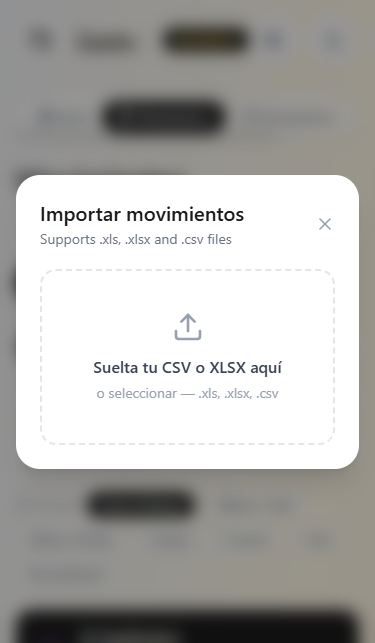
Import also works on mobile: the dialog adapts to smaller screens and the process is identical.
Gasto.ai processes the file instantly, automatically parsing the bank’s specific format, normalising dates and amounts, and removing any duplicate transactions.
Supported formats: .xls (Kutxabank, BBK, Cajasur), .xlsx (CaixaBank, BBVA, Santander, Sabadell, Bankinter), .csv (any bank, semicolon or comma separator).
Step 3: Classify your transactions with AI in one click
After import, Gasto.ai automatically detects how many transactions are pending classification and offers to categorise them all at once using its AI engine.
In the Transactions view, the AI Classification banner shows the exact number of pending transactions and the monthly classification counter. Click Classify with AI to start.
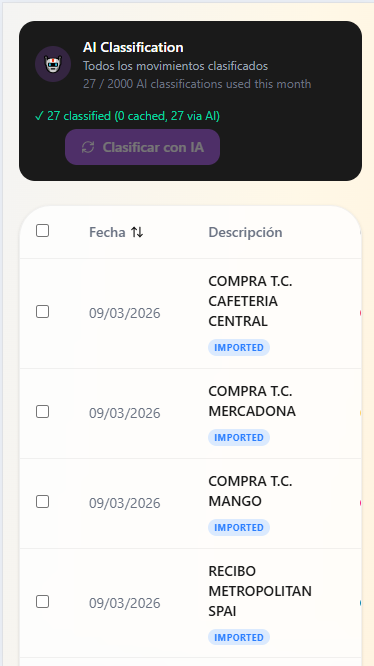
The system uses three layers of knowledge to classify each transaction:
- Your custom rules — highest priority.
- Global merchant database — thousands of recognised Spanish merchants (Mercadona, Zara, Glovo, Endesa, cafés, gyms…).
- AI model — infers the most likely category for unrecognised transactions.
In this guide’s example, PURCHASE CAFETERIA CENTRAL is classified as “Restaurants & Bars”, PURCHASE MERCADONA as “Food & Groceries”, and RECEIPT METROPOLITAN SPAI as “Sport & Fitness” — all without any manual input.
Step 4: Review and improve with custom rules
While the AI gets most things right, some transactions may be miscategorised. Correcting them is quick — and those corrections pay dividends every month going forward.
In the transaction list, click the edit icon next to any category. Select the correct category and confirm. The system will ask whether you’d like to create an automatic rule so all future transactions from that same merchant are classified the same way.
Spanish banks use standardised transaction descriptions that aren’t always intuitive. STANDING ORDER community fees flat might not be recognised by the global system initially. But once you create the rule, every month that charge arrives it will go straight to “Housing & Community” without any action on your part.
“The more you use Gasto.ai, the smarter it gets for your specific situation. The rules you create today work for you every month going forward.”
What can you do now that your transactions are classified?
- Dashboard: month-at-a-glance — income, expenses, net balance, and comparison with the previous month.
- Budgets: set per-category limits and activate alerts at 80%, 90%, and 100%.
- Month-end projection: spending estimate based on your current pace.
- Anomaly alerts: unusual charges, possible duplicates, and forgotten subscriptions.
- Accountant export: in the Professional plan, a PDF report of tax-deductible expenses ready for your accountant.
Frequently asked questions
Does Gasto.ai store my bank passwords? No. With manual import you’re only processing a local file. With PSD2 connection, authentication happens on the bank’s secure website and Gasto.ai only receives a temporary encrypted access token.
Does it work with any Spanish bank? Yes. The manual import method accepts any .xls, .xlsx or .csv file from any bank. Automatic PSD2 sync is currently in development and will be available soon.
What happens if I import transactions I’ve already imported? The deduplication system automatically detects and discards duplicate transactions.
How many AI classifications do I get? The free plan includes 100 per month. Personal: 500, Professional: 2,000, Business: 10,000.
Can I import transactions from more than one bank? Yes. You can import files from different banks into the same Gasto.ai account. The system unifies them in a single view, distinguishing the source of each transaction.
Is my data shared with third parties? No. Gasto.ai does not sell or share transaction data with third parties, advertisers, or financial institutions. See the full privacy policy.
Get started free — no credit card required
Import up to 100 transactions per month on the free plan. Connect your bank in under 5 minutes.
Try Gasto.ai for free →Compatible with Kutxabank · CaixaBank · BBVA · Santander · Sabadell · Bankinter and 80+ Spanish banks